Search

Showing posts with label SQL Azure. Show all posts

Thursday, December 9, 2010

Moving your database to the cloud with SQL Azure - Part 1

Problem
There has been lots of buzz about cloud computing lately and looking at the benefits it provides (in terms of cost savings, high availability, scalability (scale up/down) etc.) it is now evident that cloud computing is the future for next generation applications. Many of tomorrow's applications will be designed and hosted in the cloud. Microsoft realizes this potential and provides a cloud computing solution with Windows Azure. Windows Azure platform, which is hosted inside Microsoft data centers, offers several services which you can leverage while developing your application if you target them for the cloud. One of them is Microsoft SQL Azure, it's a cloud based relational database service built on Microsoft SQL Server technologies. In this tip series, I am going to show how you can start creating databases and database objects on the cloud with SQL Azure.

Solution
Recently Microsoft launched Microsoft SQL Azure (formerly called SQL Data Services (SDS)) Oct CTP, which provides relational database capabilities on the cloud and is based on SQL Server technologies. You use familiar T-SQL commands to work with your database though not all T-SQL statements are supported with SQL Azure. You can find a complete list of supported/unsupported T-SQL statements here.

SQL Azures enables you to store structured, semi-structured, and unstructured data in your cloud database. Though the current SQL Azure Oct CTP version offers relational database service only, some of the features are not supported yet, but would likely be part of future CTPs or RTM, (refer to the SQL Azure site on MSDN for the latest updates). In the future it’s going to support more services for example Reporting Services, Analysis Services etc.

Turning the wheel...
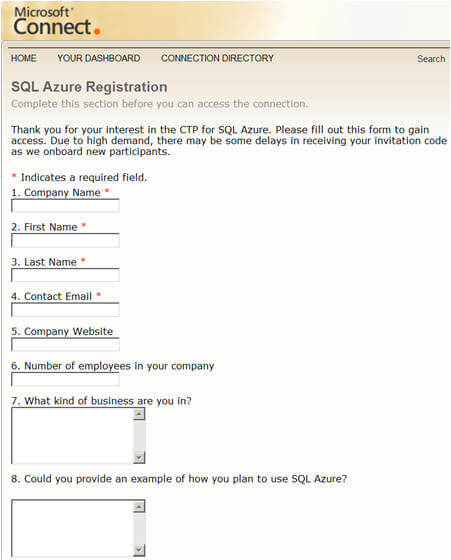
Currently Windows Azure and SQL Azure are in its Community Technology Preview (CTP) version (this example is based on the October CTP). So to work on this, first you need to login with your hotmail or Live ID and you need to register on http://go.microsoft.com/fwlink/?LinkID=149681&clcid=0x09; you will get a form similar to the one shown below.
On submitting the above form you will get an email from Microsoft with an invitation code. Then you need to go to https://sql.azure.com/, login with your hotmail or Live ID and enter your invitation code in the form as shown below:
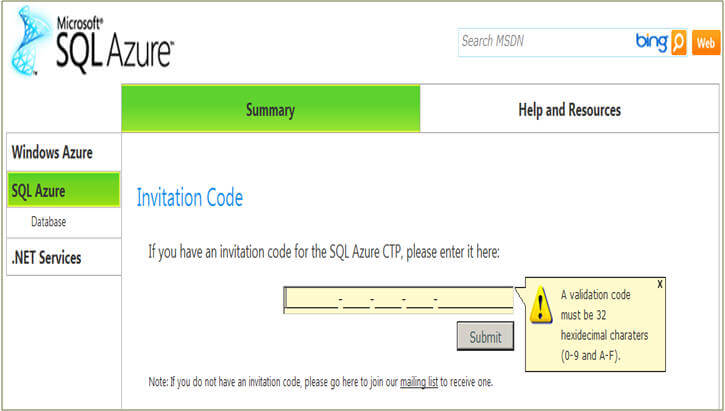
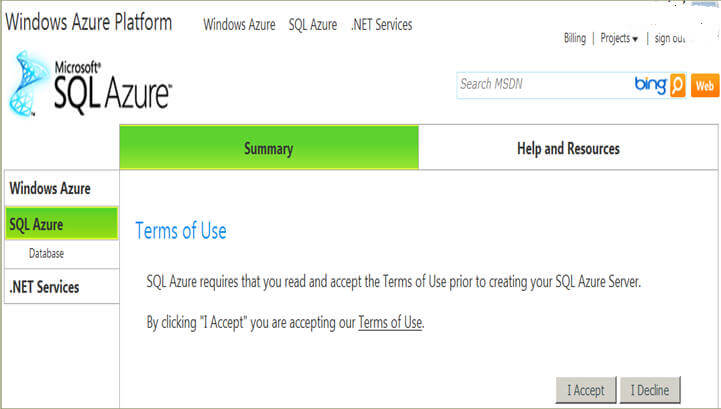
Once you enter correct invitation code, you will be prompted to accept terms of usage, you can accept by clicking on the "I Accept" button after reading it.
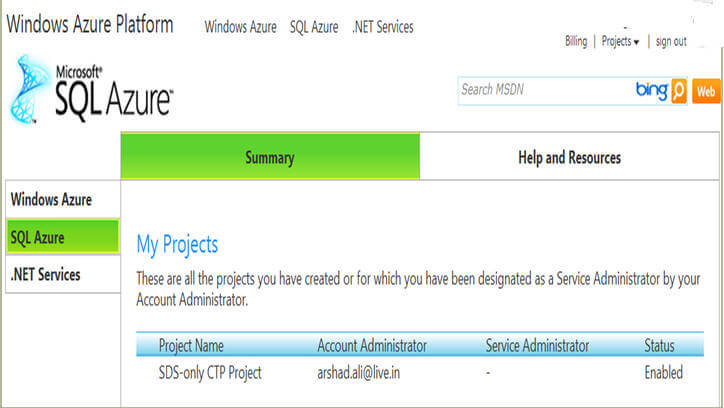
Then you will see the next screen which will show you a default project created for you. You need to click on the Project Name (in current case it is "SDS-Only CTP Project") in the grid to move to the next step..
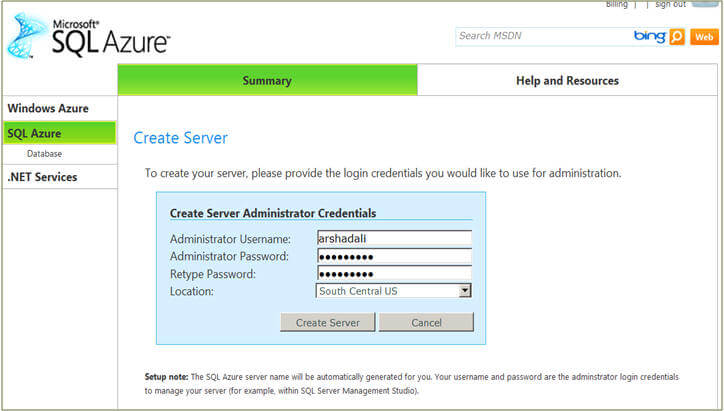
Now that default project is already created, you need to create a server (with Oct CTP you can create one server and five databases in it including the default master database). For that you need to specify the Administrator user name and password. Please keep the Administrator user name and password safe as it will be required when you want to connect to the server from SQL Server Management Studio (SSMS) as an administrator. The server name will be automatically generated and it will be shown to you on the next screen.
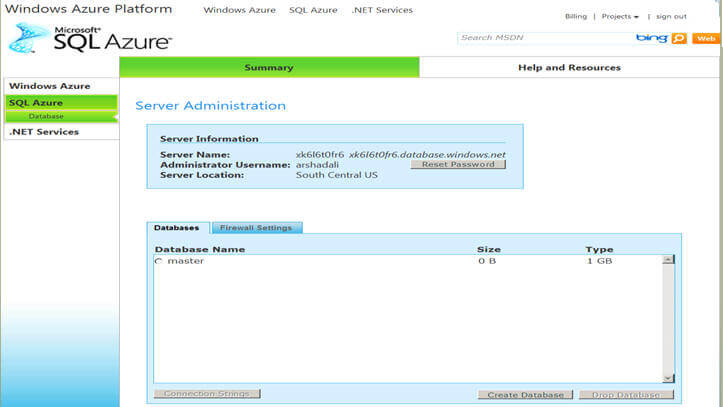
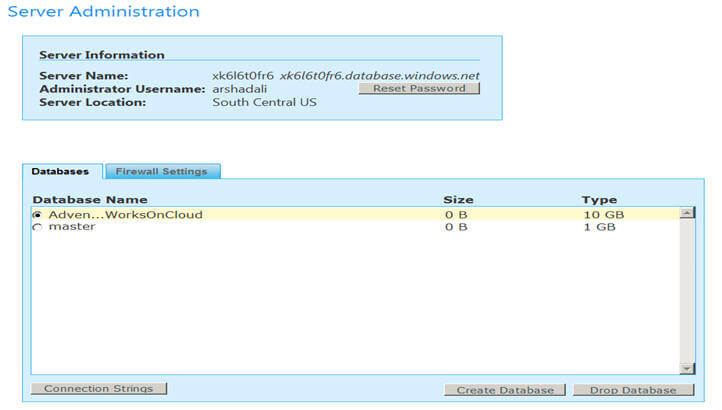
Here you can see a server has been created for you and the user name you specified in last screen is the administrator on the server. By default you will notice a master database is created. On the bottom right you can see there are two options ("Create Database" and "Drop Database"). Click on "Create Database", specify the name of the database and its maximum size.

With the current CTP, two editions of databases can be created, first Web edition which has maximum 1 GB size limit and second Business edition which has maximum 10 GB size limit. More details on these different editions and pricing can be found here.
With the "Create Database" option, I created a database called AdventuresWorksOnCloud which you can see here. To get the connection string, which you will need to connect from your applications, you can select the radio button before the database and then click on "Connection Strings" option on the bottom left.
Okay so far we created a server on the cloud and a database in it. Now I am going to show how you can connect to your newly created database.

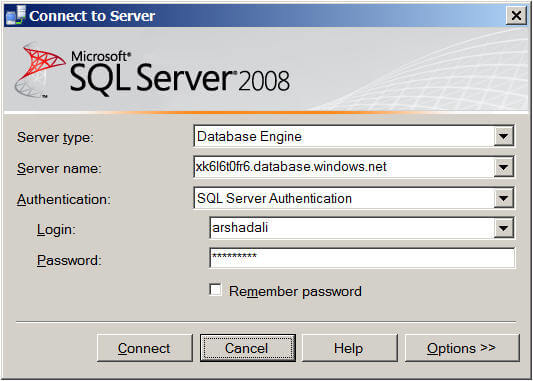
Launch SSMS by going to Start -> SQL Server 2008 -> SQL Server Management Studio. You will prompted to enter your connection details, click cancel on it because the current CTP does not allow you to connect from SSMS Object Explorer, if you try connecting from there you will get an exception error like this "Invalid object name 'sys.configurations'. (Microsoft SQL Server, Error: 208)". So you need to click the "New Query" button and then specify the server name (which was created above), the user name and password as shown below.
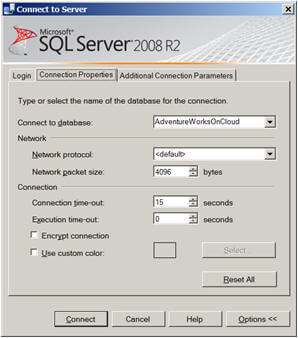
Further as the current CTP does not allow using the USE statement to switch to different database you need to specify which database you want to connect to. For that click on the "Options>>" button and in the "Connect to database" combo-box specify the database name.
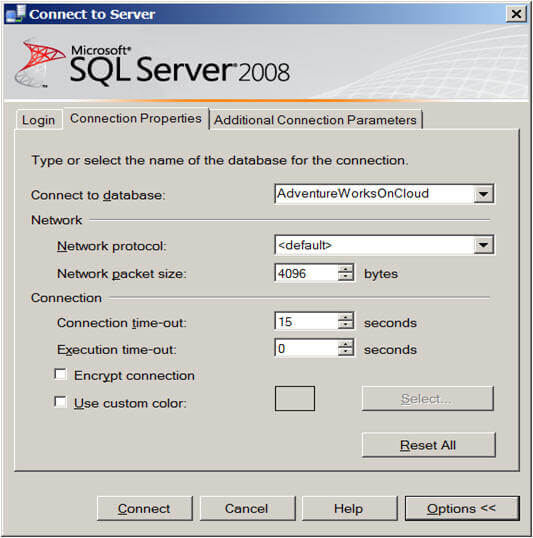
Now click on the "Connect" button and you will get an exception error similar to this.
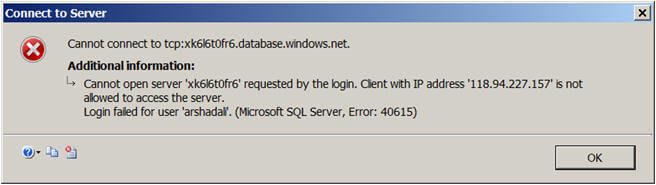
This is because, for security reason, by default all hosts are denied access. So you must specify the IP address ranges of the hosts which will be accessing your server and databases by going to the SQL Azure web portal as shown below:
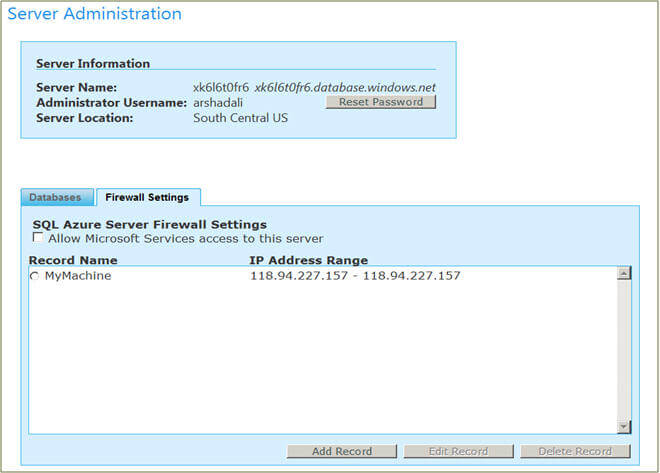
Once the Firewall Settings are set you should be able to connect and use familiar T-SQL commands.

Ref: http://www.mssqltips.com

Monday, December 6, 2010

SQL Azure enhancements with SQL Server 2008 R2

Problem
If you were unhappy with the capabilities of SQL Server Management Studio (SSMS) while working with SQL Azure, then there is good news for you. Microsoft has announced the November CTP for Microsoft SQL Server 2008 R2. The SSMS of this version allows you to work with SQL Azure in almost the same way as when you are connected to a local SQL Server. In other words, now you can use your favorite Object Explorer in SSMS to browse through the database objects hosted in SQL Azure as well.

Solution
In my first tip in this series, I discussed how you can start working with Microsoft SQL Azure. I also discussed the limitations of SSMS in terms of its capabilities to work with SQL Azure.

With SQL Server 2008 R2 (Nov CTP), SSMS has been enhanced to support SQL Azure connectivity using Object Explorer along with a host of other features. In this tip, I am going to go through the latest enhancement in SSMS which support SQL Azure.

If you have not already worked with SQL Azure, please review this tip and go through the steps of setting up an account. Also, you will need to download and install SQL 2008 R2 (Nov CTP) to use these new features.


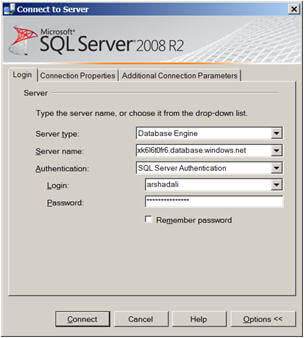
Click on "Connect" in Object Explorer, select Database Engine, provide your credential to connect to SQL Azure and choose the database to connect to.

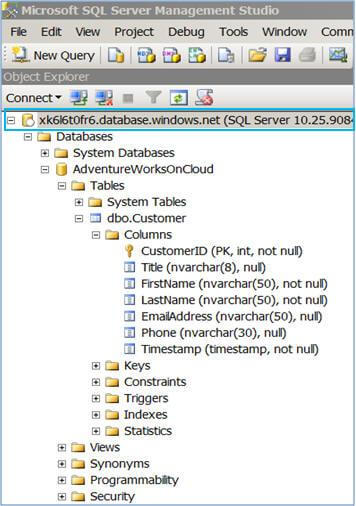
You should now now be connected to your database hosted in SQL Azure using Object Explorer.

Now you can drill-down similar to the way you can when connected to a local SQL Server. Some capabilities are still limited and more features are likely to come in future CTPs or in the RTM. For example when you click on the "New Table" option, it will not open up the table designer, but rather will give you a create table script template which is compatible with SQL Azure also the "Design" option will not be available for an existing table if you are connected to SQL Azure. For that you need to generate a script for the existing table, make the required changes and run the script again to modify the table.

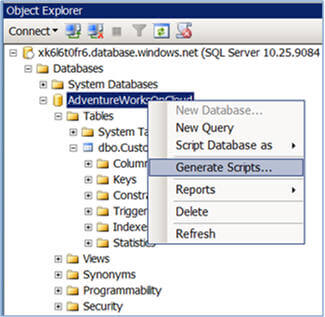
The Generate and Publish Scripts Wizard has also been enhanced to use SQL Azure for both the source and destination for the scripts it publishes. It can be handy if you want to move your database or database objects from one server or database to another server or database on SQL Azure.

Though you can use almost all the important T-SQL statements with SQL Azure, there are few of which are not supported and a few need a little bit different syntax, you can find a complete list of supported/unsupported T-SQL statements here.

The syntax differences are mostly related to the definition of the physical storage location. For example when you create a database in the cloud you specify the create database statement without specifying the file-groups and file information. Likewise when you create a table you don't specify the file group on which the table is to be created.

Script #1 : CREATE TABLE statement in SQL Server

CREATE TABLE [Customer](
[CustomerID] [int]
IDENTITY(1,1) NOT NULL,
[Title] [nvarchar]
(8) NULL,
[FirstName] [nvarchar]
(50) NOT NULL,
[LastName] [nvarchar]
(50) NOT NULL,
[EmailAddress] [nvarchar]
(50) NULL,
[Phone] [nvarchar]
(30) NULL,
[Timestamp] [timestamp]
NOT NULL,
PRIMARY
KEY CLUSTERED
(

[CustomerID]
ASC
)
WITH (PAD_INDEX = OFF, STATISTICS_NORECOMPUTE = OFF,
IGNORE_DUP_KEY
= OFF, ALLOW_ROW_LOCKS = ON,
ALLOW_PAGE_LOCKS
= ON) ON [PRIMARY]
)
ON [PRIMARY]
GO

Script #1 contains a simple script to create a table in SQL Server, as you can notice, by default, the table along with the primary key index is being created in the PRIMARY file-group whereas in Script #2 in SQL Azure you just specify the create table statement without specifying the physical storage location.

Script #2 : CREATE TABLE statement in SQL Azure

CREATE TABLE [Customer](
[CustomerID] [int]
IDENTITY(1,1) NOT NULL,
[Title] [nvarchar]
(8) NULL,
[FirstName] [nvarchar]
(50) NOT NULL,
[LastName] [nvarchar]
(50) NOT NULL,
[EmailAddress] [nvarchar]
(50) NULL,
[Phone] [nvarchar]
(30) NULL,
[Timestamp] [timestamp]
NOT NULL,
PRIMARY
KEY CLUSTERED
(

[CustomerID]
ASC
)
WITH (PAD_INDEX = OFF, STATISTICS_NORECOMPUTE = OFF,
IGNORE_DUP_KEY
= OFF, ALLOW_ROW_LOCKS = ON,
ALLOW_PAGE_LOCKS
= ON)
)

GO

So if you are wondering how you will move your database schema objects and data to SQL Azure there are several options, for example you can use Visual Studio Team System 2008 Database Edition or a third party database comparison tools to generate the database schema objects by comparing your database with a blank database and for data comparing your table with an empty table. You need to do some tweaking before executing the scripts generated by these options, in other words you need to remove any T-SQL statement which is not supported by SQL Azure or which has slightly different syntax.

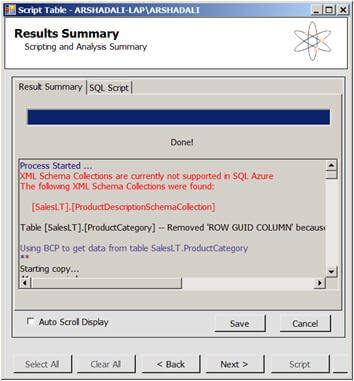
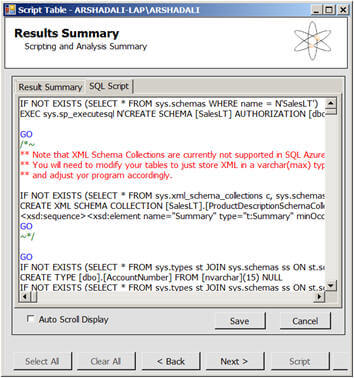
To save you from some of this work, George Huey has developed a SQL Azure Migration Wizard which helps you in migrating your SQL Server 2005/2008 database to SQL Azure. This tool is smart enough to tweak the T-SQL statements to a great extent to make it compatible with SQL Azure, but there might be some changes you need to do in the generated scripts for which it will give you comments inline as you can see in the image below.

Note

  • The step by step demonstration shown above is based on SQL Azure October CTP and SQL Server 2008 R2 Nov CTP. There might be new features or changes in the way the current features work in upcoming CTPs or in the RTM. Kindly refer to Microsoft SQL Azure site and Microsoft SQL Server 2008 R2 site for latest updates.

  • You can not create a table without a primary key in SQL Azure.

  • Even though you can create a new database in SSMS it will not be visible in Object Explorer (only the current database will be visible in Object Explorer) unless you connect to that database, it means you still can not switch from one database to other if you are connected to SQL Azure.

    Ref: http://www.mssqltips.com/tip.asp?tip=1898