Search

Saturday, March 3, 2012

Backup MSSQL Database on Windows Dedicated Server

It is necessary to take Database regularly. You never know when Server face some problem, So it is necessary to take backup on your dedicated Windows Server. You can schedule the MSSQL Database to generate backup files from the below link :-
  1. Start Management Studio. Expand Databases. 
  2. Right Click on the data to be backup and Select “All Tasks” 
  3. Then Select “Backup Database”.
  4. SQL is configured to Select “Database - Complete” by Default.
  5. If you do not want to do this you can select “Database - Differential”.
  6. Generally, the Destination chosen by many users to save the SQL Backup file is “C:\Program Files\Microsoft SQL Server\MSSQL\BACKUP”.
  7. Now, Double Click on the given default path and add “sqlbackup.bak” to the Existing Path.
  8. Then Click OK.
  9. Now, to Schedule backups select the “Schedule” option.
  10. Once done, Click “…” option.
  11. Now you will find a Recurring option i.e. Radio option. Click the option and Select “Change” option right after you do that.
  12. Select the Time on which you would like to have the backup with the Schedule of the Backup. You will have to enter the Time on which you would like to have the Backup Directory Created and also specificy if you wish to have the Backup Directory Created Daily, Weekly or Monthly.
  13. Now click “OK” on Each Dialogue box and proceed.
  14. You can also check if the Backup time and the Backups to be taken are Scheduled Successfully through “C:\Program Files\Microsoft SQL Server\MSSQL\BACKUP” Directory.
  15. Now, In the Remote Data Backups only Select the SQL Backup Directory and you are done.

Friday, March 2, 2012

Error: 18456

Error 18456 is very common error in SQL Server. It generally occurs when there is some problem with the installation of MS Share Point Services. This error occurs in below mentioned scenario:
You have installed MS Windows SharePoint Services and you configured your SharePoint Services settings in SharePoint Central administration. After this, you specify the configuration database settings on Set Configuration Database Server page and then clicked 'OK'. After performing all these tasks when you clicked 'OK' you got the following error messages -
"Login failed for user 'DOMAINNAMEACCOUNTNAME'. (Error code: 18456)
Login failed for user 'NT AUTHORITYNETWORK SERVICE'. (Error code: 18456) "
Cause
If the account using for this purpose doesn't have the database creation rights in the MS SQL Server these types of errors occur. This issue generally occurs when the account is not the member of the Security Administrator role.
Solution
To solve this issue you need to add an account to the Database Creators role and to the Security Administrators role in SQL server which will certainly resolve the issue. To perform this task, just follow the below steps:
  • Add an account to the Security Administrator role that the application pool is running.
  • On Configuration Administrative Virtual Server page of SharePoint Central Administration create a new application pool and click 'OK'.
  • Restart IIS i.e. Internet Information Services of Microsoft, click 'Run' and type ' iisreset ' in the open box and click 'OK'
  • Now, on the Application Pool changes page click 'OK' and set the configuration database server page of SharePoint Central Administration after specifying the configuration database settings.
After doing all the above setting if you still get the same error then you will not be able to access the database file of MS SQL Server. In this case you have to repair the file with some third party SQL Database Repair software.

Thursday, March 1, 2012

Some communication error with SQL Server

Sometime when you connect to SQL Server you may get communication that may be Client side or Server Side. Here is a list of some common errors with reasons: 

Server-side errors
109 The pipe has been ended - This generally happen if a named pipes connection is lost during a write.


232 The pipe is being closed - This generally occur if a named pipes connection is lost during a read.


10053 Software caused connection abort - This generally happen if a sockets client (which includes SPX) aborts the connection.


10054 Connection reset by peer - This generally happen if a sockets client (which includes SPX) is actively sending or receiving data to or from SQL Server, and the network connection is lost.


10058 Can't send after socket shutdown - This generally happen if a sockets client (which includes SPX) is actively sending or receiving data to or from SQL Server, and the client application hangs or traps, or is abruptly shut down.


17824 Unable to write to server-side connection - This generally happen when SQL Server attempts to write to a client connection and the write fails. This could be caused by the client computer being hung or shut down, or due to network problems. 


17825 Unable to close server-side connection – This generally happen when SQL Server gets an error while attempting to close the network connection to the client.


17832 Unable to read login packet(s) - This generally happen when a client starts to connect, but never successfully completes the attempt because of a client operating system or application failure.

Client-Side Errors

10008 Bad token from SQL Server: data stream processing out of sync - Often caused by an abruptly terminated network connection, which causes a damaged Tabular Data Stream token to be read by the client.

10010 Read from SQL Server failed - The client was reading from the SQL Server network data stream, and the read returned a failure code.

10018 Error closing network connection - The client attempted to close a network connection and the close returned a failure code.

10025 Write to SQL Server failed - The client was writing to the SQL Server network data stream, and the write returned a failure code.

Besides communication errors, You may get some very serious error related to Data. For this you can use some third party software to recover data.


Wednesday, February 29, 2012

Error 29506 when installing Microsoft SQL Server Management Studio Express on Windows Vista or Windows 7


When you are installing Microsoft SQL Server Management Studio Express on Windows Vista or Windows 7, you may receive this error message:
The installer has encountered an unexpected error installing this package. This may indicate a problem with this package. The error code is 29506.
This error message relates with permission issue (UAC) on Windows Vista and Windows 7. To solve this problem, you have to re-run the installer again using elevated command prompt by run the command prompt as administrator and execute the installer in there. If you are using 64-bit Windows, you should use the command prompt at C:\Windows\SysWOW64\cmd.exe instead. Otherwise, you can use the command prompt at C:\Windows\System32\cmd.exe.
  1. 32-bit Windows : Run elevated command prompt by right-click on Command Prompt in Start -> All Programs -> Accessories -> Command Prompt and select Run as administrator.
    Open Command Prompt as Administrator
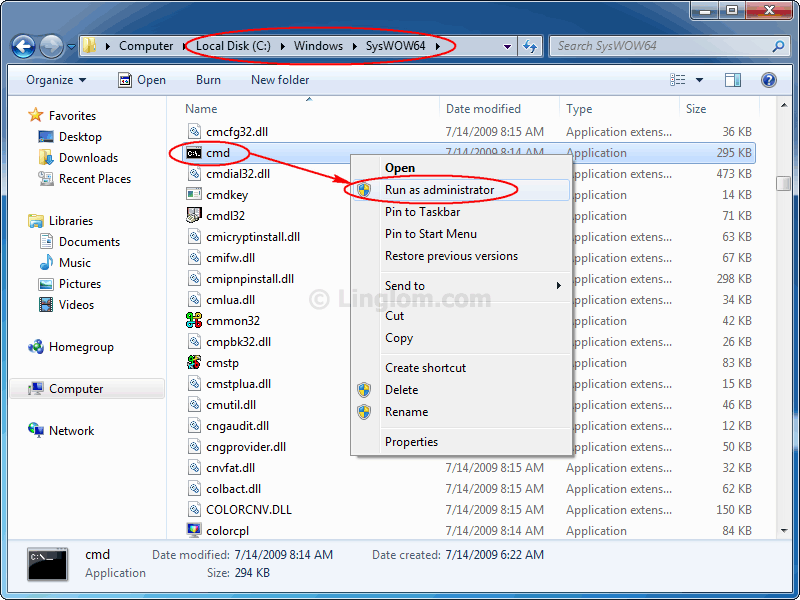
  2. 64-bit Windows: Run the command prompt in C:\Windows\SysWOW64. Right-click on cmd.exe and select Run as administrator.
    Open Command Prompt as Administrator For 64-bit Windows
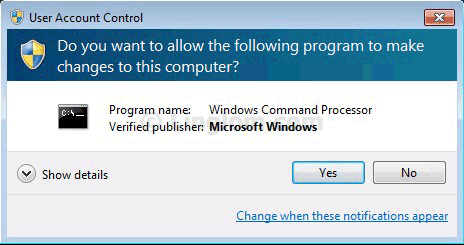
  3. On User Account Control, click Yes.
    User Account Control
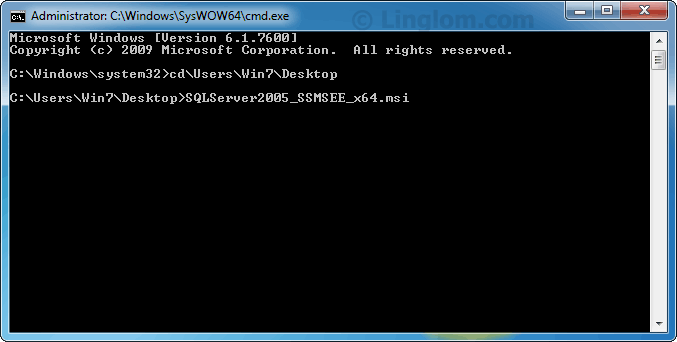
  4. On Command Prompt (both 32-bit and 64-bit Windows), change path to directory where the installer file is and execute the file. By default, the file name for 32-bit version is SQLServer2005_SSMSEE.msi and 64-bit version isSQLServer2005_SSMSEE_x64.msi.
    Execute the installer file
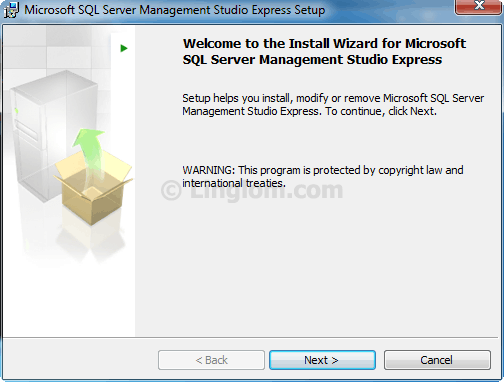
  5. On Setup Wizard, follow the instruction as usual. There won’t be the error message this time.
    Microsoft SQL Server Management Studio Express Setup


Tuesday, February 28, 2012

How to check SQL Server Authentication Mode using T-SQL and SSMS


Problem
Many times developers want to put logic into their code or SSIS/DTS package to check the SQL Server authentication mode. How can this be done programmatically?

Solution
Before we get started, I want to cover the two ways that SQL Server authenticates logins. The two ways are:

  1. Windows Authentication Mode
  2. Windows and SQL Server Authentication Mode (Mixed Mode)
Windows Authentication Mode
In Windows authentication mode, we can only use Windows logins to connect to SQL Server. Windows Authentication utilizes the Kerberos security protocol .In enterprise environments, Windows login credentials are normally Active Directory domain credentials
Mixed Mode Authentication
In Mixed mode authentication, we can use either Windows authentication or SQL Server authentication to connect to SQL Server.
Windows Authentication Mode is much more secure than Mixed Mode. SQL Server Authentication is provided for backward compatibility only. Whenever possible use Windows Authentication.

Check Using SSMS
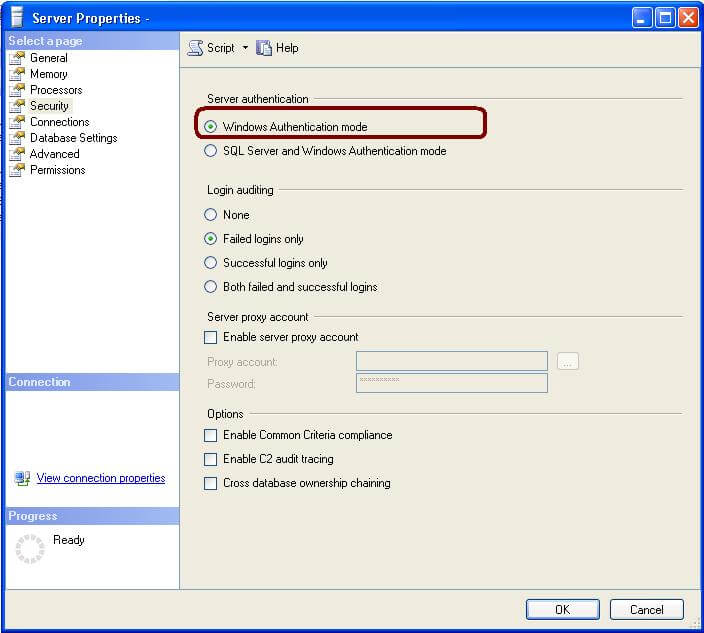
In SQL Server Management Studio Object Explorer, right-click on the server name, click Properties and go to Security page to check the SQL Server Authentication. In this case we can see that it is Windows Authentication mode.

Check Using xp_instance_regread
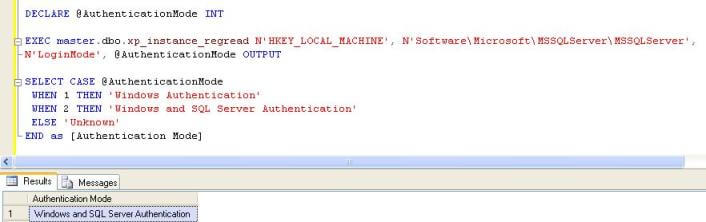
Using xp_instance_regread system procedure, we can read the registry value. SQL Server stores a "1" for Windows Authentication and a "2" for SQL Server authentication (Mixed Mode) in the windows registry. You can execute the below query to check the SQL Server Authentication.
DECLARE @AuthenticationMode INT EXEC master.dbo.xp_instance_regread N'HKEY_LOCAL_MACHINE', N'Software\Microsoft\MSSQLServer\MSSQLServer',  N'LoginMode', @AuthenticationMode OUTPUT SELECT CASE @AuthenticationMode   WHEN 1 THEN 'Windows Authentication'  WHEN 2 THEN 'Windows and SQL Server Authentication'  ELSE 'Unknown' END as [Authentication Mode] 
Output

Check Using Server Property
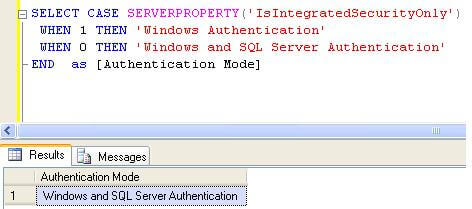
The Server Property function will return "1" for Windows authentication and "0" for Windows/SQL Authentication (Mixed Mode). It would be nice if these values were consistent from what is stored in the registry.
SELECT CASE SERVERPROPERTY('IsIntegratedSecurityOnly')  WHEN 1 THEN 'Windows Authentication'  WHEN 0 THEN 'Windows and SQL Server Authentication'  END as [Authentication Mode] 
Output

Check Using xp_logininfo
Another option is to use xp_loginfo. This returns a value of "Windows NT Authentication" for Windows Authentication and "Mixed" for Windows/SQL Authentication (Mixed Mode).
EXEC master.sys.xp_loginconfig 'login mode'