Search

Thursday, April 21, 2011

25 New Features in SSMS 2008


There are many new features in SSMS 2008. Here are some of them. This is copy/paster from some Book. 

SQL Server 2008’s Management Studio is an evolution of the SQL Server 2005’s Management Studio, which was a merger of the old Enterprise Manager and Query Analyzer.
For SQL Server 2008, Buck Woody (SSMS Product Manager) and his team went all out with enhancements, tweaks, and new features. The new supercharged Management Studio is one of my personal favorite new features of SQL Server 2008 with 25 (count ‘em) features:
*   Using Registered Servers and Server Groups, the Query Editor can now send T-SQL statements to multiple servers with a single execute.
*   Registered servers can now point to a configuration server – a central server that holds the configuration settings for several instances of SSMS so DBAs can share server configurations
*   Partitioning is easier to configure using a new wizard.
*   Performance Studio presents drill-through reports of information gathered by the Performance Data Warehouse.
*   Activity Monitor can be launched for the SPID currently be viewed.
*   Table Designed and Database Designer have new safety features to prevent accidental data loss.
*   Setting security permission has been redesigned for fewer required clicks, and better display of a principal’s effective permissions.
*   An Info-bar is available in many SSMS forms that provide user guidance.
*   A new Activity Monitor designed for the DBA provides better information including active sessions, wait states, file I/O, and long running queries.
Object Explorer has several enhancements:
*   New Object Explorer Details page display tons of information about the object and has configuration columns and  Vista-like properties panel a the bottom of the page.
*   Object Search makes it easier to locate the right object.
*   The number of rows returned by Object Explorer > Select Top n Rows and Object Explorer > Edit Top Rows can be set in Options.
*   PowerShell can be launched from most nodes in Object Explorer.
*   Service Broker can now be configured and controlled from Object Explorer.
The Query Editor alone has several enhancements:
 *  IntelliSense that completes table and column names, It’s not perfect, but I’ll bet that with a little time for Microsoft to polish it and for us to get used to it, it will be a boon to productivity.
*   Code outlining features that collapses multi-line statements and procedures.
*   Customizable tabs
*   Lunch profiler from Query Editor
*   Error List recalls last T-SQL errors
*   T-SQL debugger
*   Results grid right click options
Working with Query Execution Plans is improved:
*   An XML query plan (from sys.dm_exec_query_plan ) can be opened as a graphical query plan.
*   XML Showplans are now formatted for easier viewing.
*   Graphic execution plans can be converted to XML showplans.
*   Saved graphic execution plans can be converted back in to the original query.

Rectify Error 8994 in MS SQL Server 2008 database

In SQL Server databases, the data is stored in heaps when the data is not logically sorted in the tables. This heap can sometimes display abnormal behavior while working on the SQL database. Such cases can occur because of various reasons such as virus infections, power outages, abrupt system shutdown, hardware malfunctions, etc. In such cases, you should try to resolve the problem using in-house recovery methods. If you are not able to recover SQL database, then you should use a third-party SQL recovery software.

Consider a scenario wherein you encounter the following error message while working on an MS SQL Server 2008 database:

“Object ID O_ID, forwarded row page P_ID1, slot S_ID1 should be pointed to by forwarding row page P_ID2, slot S_ID2. Did not encounter forwarding row. Possible allocation error.”

The root cause of this erroneous situation is that there is a forwarded row in a heap that is missing the forwarding row that should point to it.

To resolve this problem, you need to do MDF file recovery. For this, you should perform the following methods:

Check for hardware issues: You should check the hardware components to ascertain whether the error has occurred because of any hardware malfunctions or not. You can also swap the hardware components to isolate the actual problem. Last but not the least, you can even consider reformatting hard disks and reinstalling operating system.

Restore from backup: If it is not a hardware related problem, then you should check the backup of the database. If it is updated and clean, then you should restore the database with its backup.

Run DBCC CHECKDB: If the database is not clean, then you should run DBCC CHECKDB command with the suggested clause to repair the corrupted database. It will convert the forwarded row into a regular data row.

These methods should be able to repair the corrupted SQL component. However, if you are still getting the same error, then you should use a third-party SQL database recovery software to perform SQL recovery. Such MDF recovery tools are read-only in nature that do not overwrite the existing database while scanning.

Stellar Phoenix SQL Data Recovery is a master database file recovery software that recovers MDF files from all instances of logical corruption.

Wednesday, April 20, 2011

Error 926 in MS SQL Server 2008 database


Are you facing problems in mounting a MS SQL Server 2008 database? Then, there are chances that the database (MDF file) is corrupt, which is why you are unable to access it. Such scenarios can occur due to various causes such as virus infections, power outages, damaged hardware components, etc. In such cases, you should find out the exact reason for database corruption and try to repair it. However, if you are not able to do so, then you should use a third-party SQL Server recovery software to perform MDF file recovery.
Consider a scenario wherein you have installed MS SQL Server 2008 on your system. When you try to open a particular database, it fails to open. The following error message is displayed, as a result.
Database '%.*ls' cannot be opened. It has been marked SUSPECT by recovery. See the SQL Server error log for more information.”
Cause:
The root cause for such situation is that the database is marked as suspect, as is suggested in the message, and is corrupt. This is evident from the fact that it has not passed the recovery process that would have bring the database to a consistent state. It could have corrupted during the following situations:
  • While starting the SQL Server instance
  • When you were attaching a database
  • When you were using the RESTORE database or RESTORE LOG procedures
Resolution:
To resolve this problem, you should perform the following methods:
  • Check error log: You should check the error log and try to find out the exact cause of the error. Also, if SQL Server started after the failed recovery then check the previous error logs to know the reason of recovery failure.
  • Look for hardware issues: You should check if the problem has occurred because of hardware malfunctioning such as regular I/O errors, damaged page, etc. In such cases, you should replace the hardware component and try to mount the database again.
  • Restore from backup: If you have a clean and updated database backup, then you should restore the database from its backup.
  • Run DBCC CHECKDB: If the backup is not clean or updated, then you should run the DBCC CHECKDB command, first without the repair clause to determine the extent of corruption. Then, you should run it with the suggested repair clause to repair the corrupted database.

However, if you still are not able to mount the SQL Server database even after performing the aforementioned methods, then you should use a third-party master database file recovery software to recover MDF file. Such SQL recovery tools are read-only in nature that do not overwrite the existing database while scanning.
Stellar Phoenix SQL Data Recovery is an MS SQL Server recovery software that repairs corrupted databases created in MS SQL Server 7.0, 2000, 2005, and 2008. It restores various database objects such as tables, queries, NDF files, stored procedures, defaults, triggers, etc. This SQL database recovery tool is compatible with Windows 7, Vista, Server 2003, XP, and 2000.

Performance Analysis Using SQL Server 2008 Activity Monitor Tool


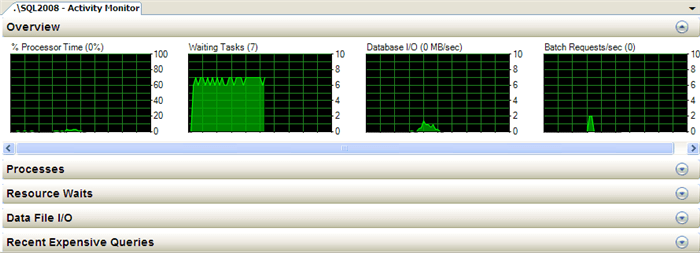
The Activity Monitor is a great tool which can be used by database developers and administrators to get a quick overview of SQL Server 2008 system performance. The Activity Monitor tool in the previous version of SQL Server used to display information related to Processes, Lock by Objects and Locks by Process. There are many enhancements in Activity Monitor in SQL Server 2008 like a graphical display of Processor Time, Waiting Tasks, Database I/O's, Batch Requests, Processes, Resource Waits, Data File I/O's and also information about the most expensive queries. However, to view Activity Monitor in SQL Server 2005 and in SQL Server 2008, a user must have VIEW SERVER STATE permission.

Different Ways to Open up Activity Monitor in SQL Server 2008 are mentioned below:

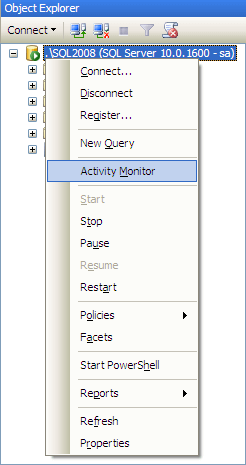
Open up Activity Monitor Using Object Explorer
In Object Explorer, right click the SQL Server 2008 Instance and select Activity Monitory from the drop down list as shown in the snippet below.


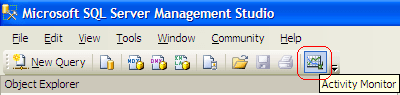
Open up Activity Monitor in SQL Server 2008 Management Studio
In the SQL Server 2008 Management Studio’s toolbar, click Activity Monitor as shown in the snippet below.


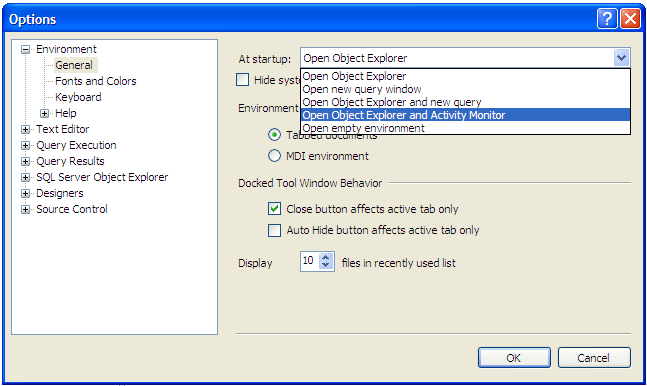
Open up Activity Monitor When SQL Server 2008 Management Studio Starts
In the Tools menu, click Options. In the Options dialog box expand Environment and then select the General tab. In the “At Startup” drop down you need to chose “Open Object Explorer and Activity Monitor” option from the drop down list and click OK. In order to see this change you need to close and reopen SQL Server 2008 Management Studio.


Overview of SQL Server 2008 Activity Monitor
In SQL Server 2008, Activity Monitor is divided into five sections namely Overview, Processes, Resource Waits, Data File I/O and Recent Expensive Queries. We will cover each section in detail.
Overview: - This shows the graphical display of Processor Time (%), Number of Waiting Tasks, Database I/O (MB/Sec) and the Number of Batch Requests/second.


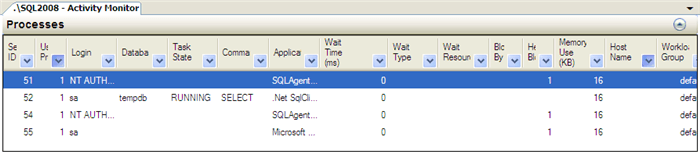
Processes: - This shows the list of all the active users which are connected to SQL Server Database Engine. Here, you can right click any of the Session IDs which you think are problematic and can run a SQL Server Profiler Trace to capture all its activities; you can also see the Session Details or can even KILL a process.


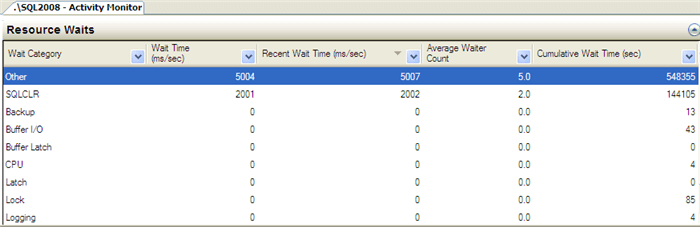
Resource Waits: - This provides valuable information with respect to a thread which is waiting for a key resource such as Memory, CPU and Network etc on an instance of SQL Server. This helps database administrators indentify potential bottlenecks with respect to Memory, CPU, Network I/O etc.


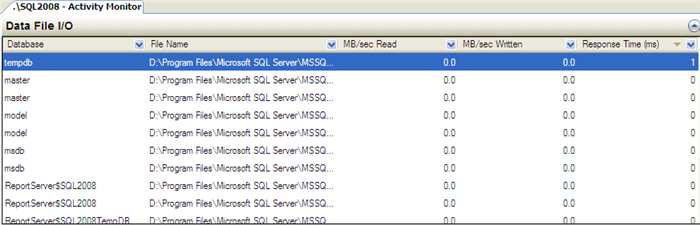
Data File I/O: - This displays disk level I/O information related to all the data and log files of user and system databases. Database administrators can quickly identify databases which are performing badly due to disk bottlenecks.


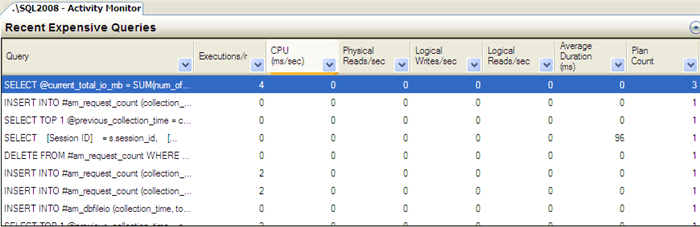
Recent Expensive Queries: - In this section, database administrators can quickly identify poorly performing queries in an SQL Server Instance. With the feature, which I like the most, you can right click any of the problematic queries and choose the "Edit Query Text" option to edit the query. Moreover, you can also see the execution plan of the poorly performing query by right clicking the problematic query and by selecting the option “Show Execution Plan".


Copying Databases to Other Servers


Sometimes it is required to copy a database to some other computer, for example for testing, checking consistency, developing software, running reports, creating a mirror database, or making the database available to remote-branch operations.


There are several ways to copy a database:
  • Using the Copy Database Wizard
    You can use the Copy Database Wizard to copy or move databases between servers. For more information, see Using the Copy Database Wizard.

  • Restoring a database backup
    To copy an entire database, you can use the BACKUP and RESTORE Transact-SQL statements. Typically, restoring a full backup of a database is used to copy the database from one computer to another for a variety of reasons. For information on using backup and restore to copy a database, see Copying Databases with Backup and Restore.


    • Copying databases from SQL Server 6.5 or earlier
      For information about upgrading databases, see Copying Databases from SQL Server 7.0 or Earlier.
    • Using the Generate and Publish Scripts Wizard to transfer databases
      You can use the Generate and Publish Scripts Wizard to transfer a database from either a local instance of the Database Engine or from SQL Azure. You can use the wizard in two ways:
      • Use the wizard to generate a script of the database, and then run the script on either another instance of the Database Engine or SQL Azure.
      • Use the wizard and a publishing provider to publish a database directly to a Web service created by using the Database Publishing Services project from CodePlex.