Search

Friday, February 18, 2011

SQL Server Database Corruption When you Set the Database Online

Microsoft SQL Server RDBMS (Relational Database Management System) enables you to take your database online and offline as per your requirements. You can set your database either online or offline easily using the 'Alter Database' command. If MDF (Master Database File) of your SQL Server is online, all the connected users can access it, modify it, perform other operations, depending upon the privileges assigned to them. However, in some situations, you may face critical database corruption problems, while trying to set an MS SQL Server database online. This behavior leads to significant data loss situations and needs SQL database recovery to be sorted out.

As a practical example of the above problem, you may come across the underwritten error messages when you try to set your MS SQL Server database online using 'ALTER DATABASE mydb SET online' command:

Msg 5171, Level 16, State 1, Line 1 E:\Data\mydb_log.ldf is not a primary database file. Msg 5171, Level 16, State 2, Line 1 E:\Data\mydb.mdf is not a primary database file. File activation failure. The physical file name "E:\Data\mydb.mdf" may be incorrect.

Msg 945, Level 14, State 2, Line 1 Database 'mydb' cannot be opened due to inaccessible files or insufficient memory or disk space. See the SQL Server errorlog for details. Msg 5069, Level 16, State 1, Line 1 ALTER DATABASE statement failed.

After the above behavior, database can not be set online and it remains inaccessible. To sort out the problem, you need to identify causes of this issue and then perform SQL Server recovery by fixing it.

Cause:

This behavior of Microsoft SQL Server occurs if the MDF or Master Database File is damaged and it is unreadable. SQL Server is unable to recognize the file and access its contents. Corruption may occur due to virus infection, improper system shutdown, and application malfunction like situations.

Solution:

In order to recover SQL database in such situations, you are recommended to run DBCC CHECKDB utility. You can also try restoring the database from update backup. If both of the methods fail to work, repair and restore the database using third-party applications.

The MS SQL recovery software are designed to methodically scan entire database and extract all inaccessible and damaged data from it. They have read-only conduct and rich graphical user interface to offer safe and easy recovery in all database corruption scenarios.

Thursday, February 17, 2011

Solving Error 8931 and repairing corrupt SQL database in MS SQL Server 2000

The B-trees in the database systems are the data structure that help in storing data in sorted order. As the data is stored in the sorted order, you can easily perform certain database tasks such as adding new records, deleting existing records, searching and retrieving data with lesser turnaround time. These b-trees have certain rules laid out using which all the operations are performed. At times, some nodes in the tree fail to comply with them because of database corruption, thereby damaging the database. In such cases, you should use the in-house methods to repair MDF file, failing which you should resort to using third-party sql repair software to do the needful.

Let us consider a situation in which you are getting the following error message while working on the MS SQL Server 2000 database:

Table error: Object ID O_ID, index ID I_ID B-tree level mismatch, page P_ID1. Level LEVEL1 does not match level LEVEL2 from parent P_ID2.”

Cause:

Corruption in the b-tree pages is the root cause of this error. Actually, the level in the child page, P_ID1, does not adhere to the b-tree rules causing this error.

Resolution:

To get rid of this error, the following methods could be performed to repair MDF file:

  • Checking the b-tree pages: First of all, you should check the b-tree pages to find out which page is incorrect and, also, look for any other error that has accompanied this error.

  • Addressing hardware-related errors: If the error has occurred because of any hardware malfunctioning, then that can be checked and fixed using following measures:

    • Checking error logs in MS SQL Server and Application logs in Windows operating system to check if the error has occurred because of hardware malfunctioning.

    • Running hardware diagnostics and fixing the errors.

    • Reinstalling the operating system after formatting (and backing) the hard drives.

  • Restoring from backup: If the hardware is perfectly in place, then check the state of the backup. If it is clean and updated, then you should restore the database from the backup.

  • Running DBCC CHECKDB: If the backup is not updated, then you should use the DBCC CHECKDB tool repair the database with the suggested repair clause.

If you still get the same error message even after performing these methods, then you should repair SQL database using a third-party MDF repair software. Such read-only tools have rich user interface that enable safe and easy sql recovery.


Wednesday, February 16, 2011

How to determine which version of SQL Server data access driver is used by an application

SQL Server Native Client was introduced with SQL Server 2005 and a newer version was introduced with SQL Server 2008. How do I determine which SQL Server Native Client version is being used by my SQL connections?

Solution

First of all, it is important to know what SQL Server Native Client (SNAC) is. Microsoft states that a SNAC “contains the SQL Server ODBC driver and the SQL Server OLE DB provider in one native dynamic link library (DLL) supporting applications using native-code APIs (ODBC, OLE DB and ADO) to Microsoft SQL Server.” You can read more here:http://msdn.microsoft.com/en-us/data/ff658532.

SNAC 9 was introduced with SQL Server 2005 and SNAC 10 came with SQL Server 2008. It’s important to be able to verify which version of SNAC is used by SQL connections, because there are additional features in SNAC 10 that are not supported in SNAC 9. Refer to the link in the next steps section about the differences.

It is fairly easy to identify which protocol a specific SQL session is using by looking at sys.dm_exec_connections view. The DMV sys.dm_exec_connections has a column named protocol_version, which according to BOL means “Version of the data access protocol associated with this connection”. Basically, it indicates what protocol is associated with the client connection.

You can run the following query to get a list of connections and their protocol version.

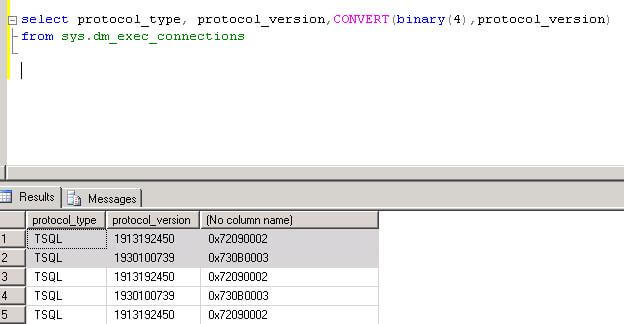
select protocol_type, protocol_version,CONVERT(binary(4),protocol_version)
from sys.dm_exec_connections

As we can see below the converted protocol is pretty cryptic.

According to the table below (source: http://msdn.microsoft.com/en-us/library/dd339982(PROT.13).aspx), we are able to interpret the hexadecimal value of the protocol version. For example, values 0x730B003 indicate that this connection comes from a client using a SQL Server 2008 driver.

SQL Server Client to ServerServer to Client
7.0 0x000000700x07000000
2000 0x000000710x07010000
2000 SP1 0x010000710x71000001
2005 0x020009720x72090002
2008 0x03000B730x730B0003

To make these eaiser to read, we can rewrite our query as follows to show the driver version.

SELECT session_id, protocol_type, driver_version =
CASE SUBSTRING(CAST(protocol_version AS BINARY(4)), 1,1)
WHEN 0x70 THEN 'SQL Server 7.0'
WHEN 0x71 THEN 'SQL Server 2000'
WHEN 0x72 THEN 'SQL Server 2005'
WHEN 0x73 THEN 'SQL Server 2008'
ELSE 'Unknown driver'
END,client_net_address ,client_tcp_port,local_tcp_port ,T.text
FROM sys.dm_exec_connections
CROSS APPLY sys.dm_exec_sql_text(most_recent_sql_handle) AS T

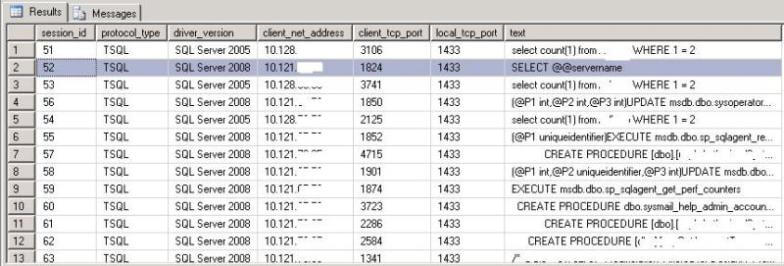
The output below shows us that our client applications are using a SNAC 9 or SNAC 10 protocol as shown in line 1 and line 2.


Tuesday, February 15, 2011

Get Table Row Counts Quickly

At some point in time we've all had to find out how many rows are in a table. The first answer you'll usually get when you ask someone how to do it is select count(*) from [table], however there are two problems with this approach: First, a table scan is required to figure out the answer; do a count(*) against a million row table and you're looking at hundreds of thousands of reads (and likely several minutes waiting for the result). Second, the count(*) method doesn't work well if you want to know how many rows are in every table in your database.

It just so happens there's a system function in SQL Server that can help solve both of these problems: sp_spaceused (BOL entry here) . When run without any parameters it returns usage information about the current database its being run in; when provided a specific object name (e.g. a table name) it returns the number of rows along with the amount of space used by\allocated for the table and its indexes. Looking under the covers of sp_spaceused reveals that the rowcount information is coming from the sysindexes table on SQL 2000 and thesys.dm_db_partition_stats DMV on SQL 2005\2008. Since the counts are coming from system objects there's no table scan involved - Problem #1 solved!

To solve problem #2 you could use a cursor to iterate through all tables (or the undocumented stored procedure sp_foreachtable), calling sp_spaceused for each table and storing the output in a temporary table...or just query the system objects directly.

Row Counts Using sysindexes
If you're using SQL 2000 you'll need to use sysindexes like so:

-- Shows all user tables and row counts for the current database

-- Remove OBJECTPROPERTY function call to include system objects
SELECT o.NAME,
i.rowcnt
FROM sysindexes AS i
INNER JOIN sysobjects AS o ON i.id = o.id
WHERE i.indid <>

Row Counts Using DMVs
If you're using SQL 2005 or 2008 querying sysindexes will still work but Microsoft advises that sysindexes may be removed in a future version of SQL Server so as a good practice you should use the DMVs instead, like so:

-- Shows all user tables and row counts for the current database

-- Remove is_ms_shipped = 0 check to include system objects
-- i.index_id < object_id =" o.OBJECT_ID" object_id =" ddps.OBJECT_ID" index_id =" ddps.index_id" is_ms_shipped =" 0">

Are The Counts Accurate?
Some system objects are only as accurate as the current statistics and occasionally statistics get outdated and need to be refreshed. Fortunately row count information in sysindexes\DMVs does not depend on updated statistics. To put this to the test I disabled the Auto Update Statistics option on a database that sees several thousand updates each day. After several days I compared the counts returned by the select count(*) method and the system objects and they matched perfectly.

Obviously you'll need to revert to the select count(*) method if you need to filter out rows (using a where clause), but for unfiltered row count information there's no excuses not to use the system objects!


Monday, February 14, 2011

GO Keyword with Integer Parameter

In SQL Server the keyword GO tells SQL Server to execute the preceding code as one batch. From SQL Server 2005 onwards we can specify the integer parameter with GO keyword which will loop the preceding statement.

/* below command will print ‘Jugal Shah’ 100 times as we have specified 100 as parameter */
print 'GO WITH Parameter'
go 100