Search

Thursday, October 13, 2011

Enable Remote Connection on SQL Server 2008 Express


SQL Server 2008 Express doesn’t allow remote connection on default installation as on SQL Server 2005 Express. So you have to enable it manually.


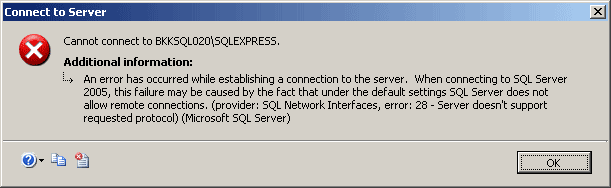
If you’re trying to connect to SQL Server 2008 Express remotely without enable remote connection first, you may see these error messages:

  • “Cannot connect to SQL-Server-Instance-Name

    An error has occurred while establishing a connection to the server.
    When connecting to SQL Server 2005, this failure may be caused by the
    fact that under the default settings SQL Server does not allow remote
    connections. (provider: SQL Network Interfaces, error: 28 – Server
    doesn’t support requested protocol) (Microsoft SQL Server)”
  • Server doesn't support requested protocol
  • “Cannot connect to SQL-Server-Instance-Name

    An error has occurred while establishing a connection to the server.
    When connecting to SQL Server 2005, this failure may be caused by the
    fact that under the default settings SQL Server does not allow remote
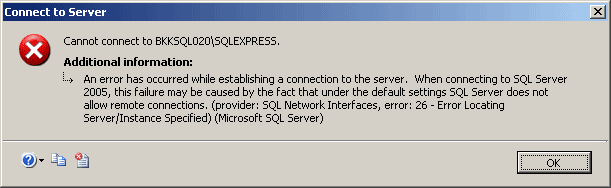
    connections. (provider: SQL Network Interfaces, error: 26 – Error
    Locating Server/Instance Specified) (Microsoft SQL Server)”

    Error Locating Server/Instance Specified
  • “Cannot connect to SQL-Server-Instance-Name
    Login failed for user ‘username‘. (Microsoft SQL Server, Error: 18456)”
    Login failed for user 'sa'
To enable remote connection on SQL Server 2008 Express, see the step below:
  1. Start SQL Server Browser service if it’s not started yet. SQL Server Browser listens for incoming requests for Microsoft SQL Server resources and provides information about SQL Server instances installed on the computer.
  2. Enable TCP/IP protocol for SQL Server 2008 Express to accept remote connection.
  3. (Optional)
    Change Server Authentication to SQL Server and Windows Authentication. By default, SQL Server 2008 Express allows only Windows Authentication mode so you can connect to the SQL Server with current user log-on credential. If you want to specify user for connect to the SQL Server, you have to change Server Authentication to SQL Server and Windows Authentication.
Note: In SQL Server 2008 Express, there isn’t SQL Server Surface Area Configuration so you have to configure from SQL Server Configuration Manager instead.

Step-by-step

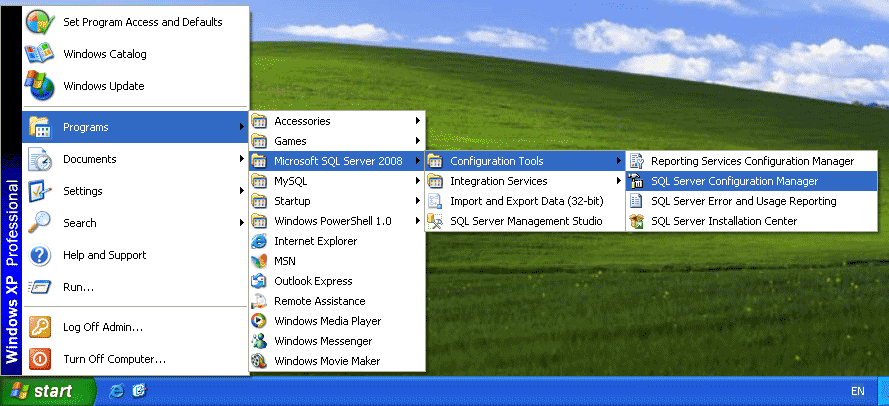
  1. Open SQL Server Configuration Manager. Click Start -> Programs-> Microsoft SQL Server 2008 -> Configuration Tools -> SQL Server Configuration Manager.
    SQL Server Configuration Manager
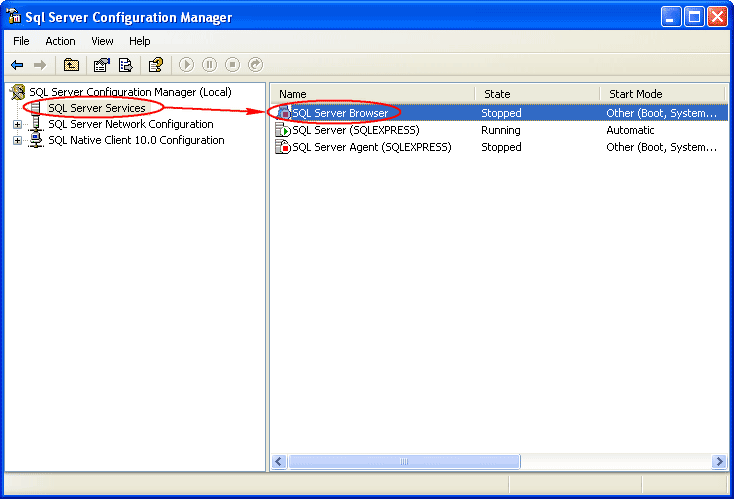
  2. On SQL Server Configuration Manager, select SQL Server Services on the left window. If the state on SQL Server Browser is not running, you have to configure and start the service. Otherwise, you can skip to step 6.
    SQL Server Browser Service
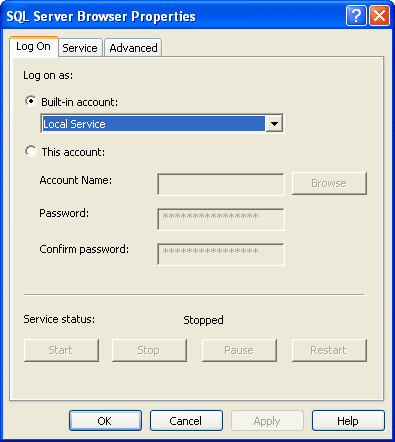
  3. Double-click on SQL Server Browser, the Properties window will show up. Set the account for start SQL Server Browser Service. In this example, I set to Local Service account.
    Set Startup Account
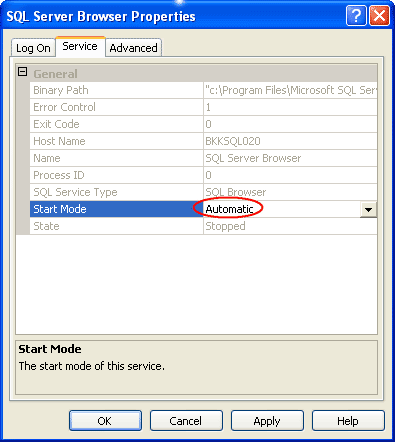
  4. On SQL Server Browser Properties, move to Service tab and change Start Mode to Automatic. Therefore, the service will be start automatically when the computer starts. Click OK to apply changes.
    Set Start Mode to Automatic
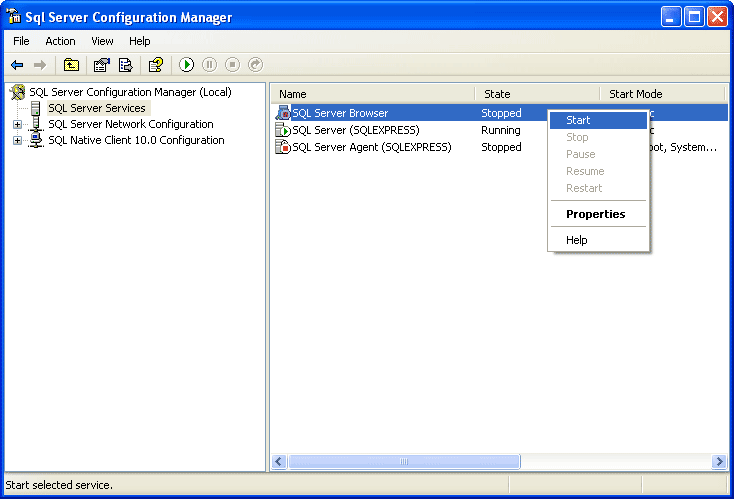
  5. Back to SQL Server Configuration Manager, right-click on SQL Server Bowser on the right window and select Start to start the service.
    Start SQL Server Browser Service
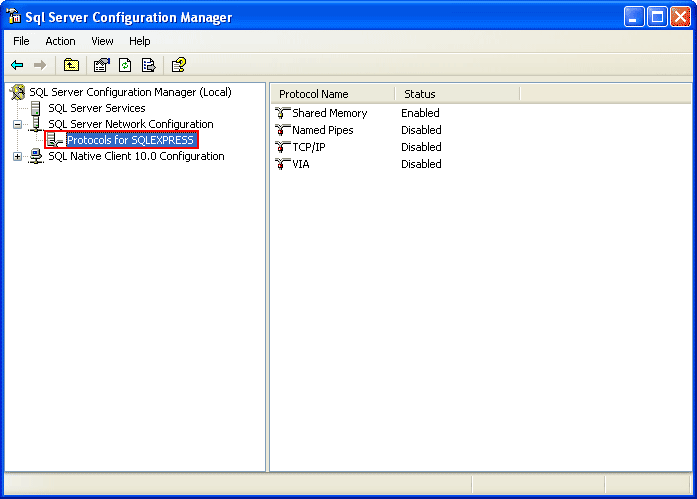
  6. On the left window, expand SQL Server Network Configuration -> Protocols for SQLEXPRESS. You see that TCP/IP protocol status is disabled.
    Protocols for SQL EXPRESS
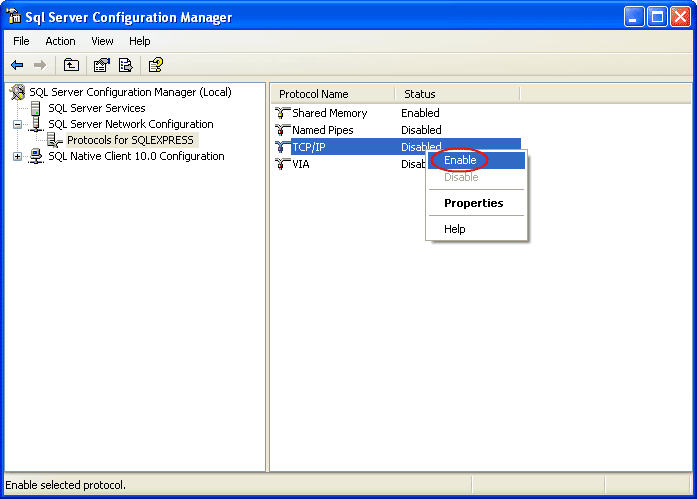
  7. Right-click on TCP/IP and select Enable to enable the protocol.
    Enable TCP/IP protocol
  8. There is a pop-up shown up that you have to restart the SQL Service to apply changes.
    Need to Restart SQL Server Service
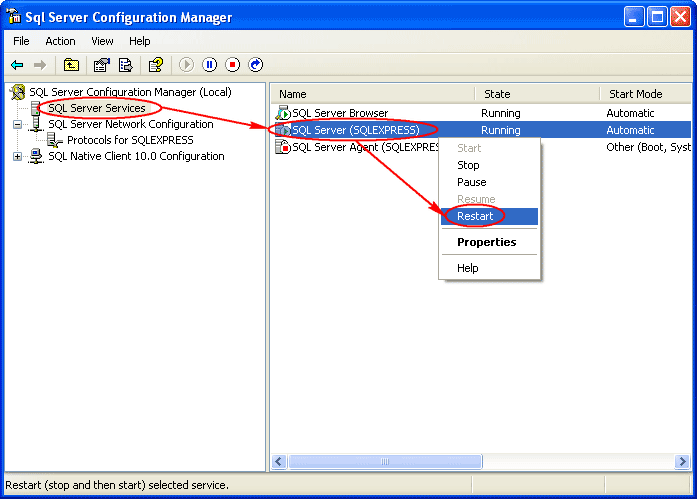
  9. On the left window, select SQL Server Services. Select SQL Server (SQLEXPRESS) on the right window -> click Restart. The SQL Server service will be restarted.
    Restart SQL Server Service
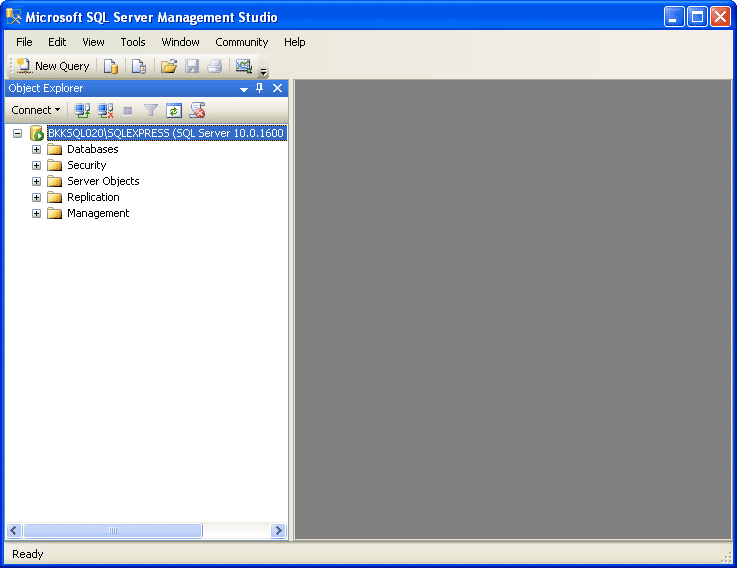
  10. Open Microsoft SQL Server Management Studio and connect to the SQL Server 2008 Express.
    Open Microsoft SQL Server Management Studio
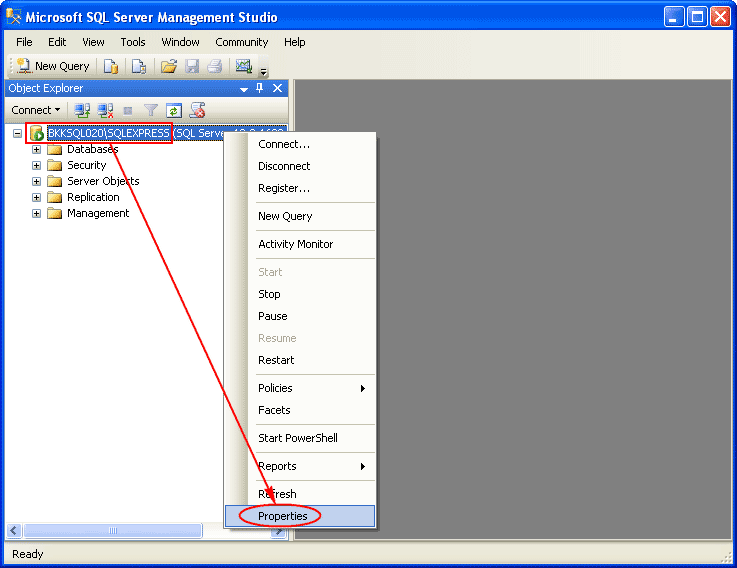
  11. Right-click on the SQL Server Instance and select Properties.
    Open Server Properties
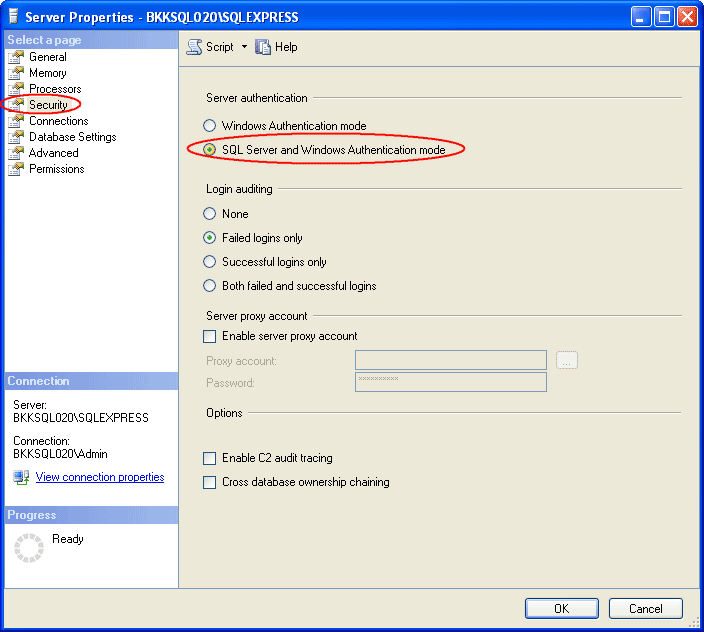
  12. On Server Properties, select Security on the left window. Then, select SQL Server and Windows Authentication mode.
    Change Authentication to SQL Server and Windows Authentication
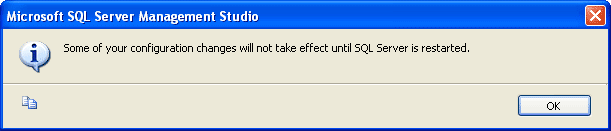
  13. Again, there is a pop-up shown up that you have to restart the SQL Service to apply changes.
    Need to Restart SQL Server Service
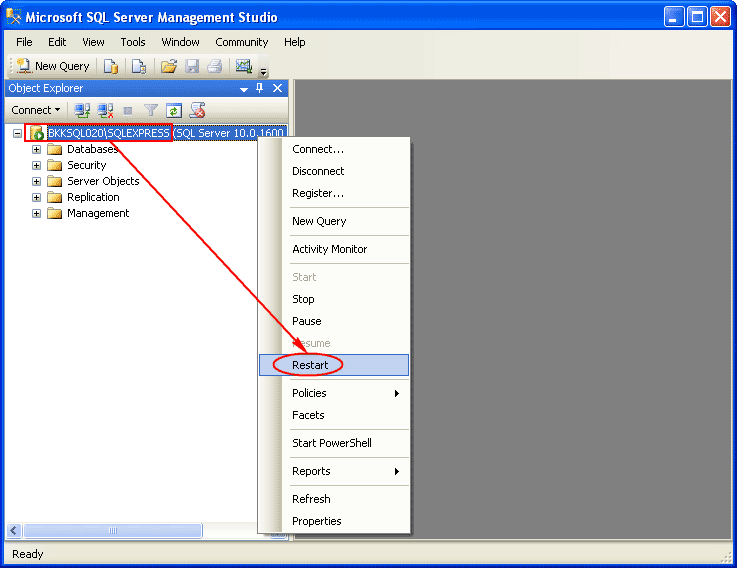
  14. Right-click on the SQL Server Instance and select Restart.
    Restart SQL Server Service

Wednesday, October 12, 2011

An error has occurred while establishing a connection to the server.

Error Description : An error has occurred while establishing a connection to the server. When connecting to SQL Server 2005, this failure may be caused by the fact that under the default settings SQL Server does not allow remote connections. (provider: Named Pipes Provider, error: 40 - Could not open a connection to SQL Server)

Solution 1:
Go to, Start  > Programs > Microsoft SQL Server 2005 > Configuration Tools > SQL Server 2005 Surface Area Configuration > Surface Area Configuration for Services and connections.
Within this check whether "Local and remote connections" is choosen. If not choose it.

Solution 2:
Check this URL http://forums.microsoft.com/MSDN/ShowPost.aspx?PostID=192622&SiteID=1 
:)

Tuesday, October 11, 2011

Using Switching you can move millions of rows from one table to another in less than a second

Assume that there are two tables table_1 and table_2 which have same structures and table_1 has 10 millions rows and you want to move all rows from table_1 to table_2. The quickest method that I have learnt is to use Partition Switching


ALTER TABLE Table_1 Switch TO Table_2;


The reason why it is fast is that data are not moved actually but SQL Server updates metadata about the location of the data

Monday, October 10, 2011

Moving master database


Moving master database is a bit different process than moving any other system database. Here is the process on how to move the master database.
Before doing anything, make sure you are having proper backups.
Stop the SQL Services.
Go to the "SQL Server Configuration Manager".
In SQL Server 2005, Click "Start" >> "All Programs" >> "Microsoft SQL Server 2005" >> "Configuration Tools" >> SQL Server Configuration Manager
In SQL Server 2008, Click "Start" >> "All Programs" >> "Microsoft SQL Server 2008" >> "Configuration Tools" >> SQL Server Configuration Manager
In the left pane, click on "SQL Server Services" 
Now in the right pane, select the SQL Server Service component  (which looks like "SQL Server (InstanceName)" ) and go to its properties.
In the "Properties" page, go to the "Advanced" tab
In the "Startup Parameters", click on the drop list and modify the parameters -d and -l to the new location where you want the master data file (master.mdf) and log file (mastlog.ldf) to reside respectively.


-d stands for the fully qualified data file path of master database.
-l stands for the fully qualified log file path of master database.
-e stands for the fully qualified path of the error log file.


Now move the files manually to the new location.
Start the SQL Services.

Saturday, October 8, 2011

Hide an Instance of SQL Server in the network


1. Launch SQL Server Configuration Manager
2. Under "SQL Server Network Configuration" > Right-Click "Protocols for SQL01" > Select Properties
3. Set "Hide Instance" value to "Yes" from the drop-down list:
4. The Instance needs to be restarted in order for changes to take effect:Once the instance is restarted it will not longer appear in the "Network Servers" list:


We can do this through T-SQL also:
The information to Show/Hide instance is stored in the registry. We can use extended stored procedure xp_instance_regwrite to update the registry value to Show/Hide instance. Below T-SQL will hide the instance. To unhide instance set @value to 0 :
EXEC master..xp_instance_regwrite
      @rootkey = N'HKEY_LOCAL_MACHINE',
      @key =
N'SOFTWARE\Microsoft\Microsoft SQL Server\MSSQLServer\SuperSocketNetLib',
      @value_name = N'HideInstance',
      @type = N'REG_DWORD',
      @value = 1
      – 0 = No, 1 = Yes
To check if an instance is hidden you can use xp_instance_regread to check registry values:
DECLARE @getValue INT
EXEC master..xp_instance_regread
      @rootkey = N'HKEY_LOCAL_MACHINE',
      @key=
N'SOFTWARE\Microsoft\Microsoft SQL Server\MSSQLServer\SuperSocketNetLib',
      @value_name = N'HideInstance',
      @value = @getValue OUTPUT
SELECT @getValue
This method only prevents the instance from being listed on the network, It does not prevent users from connecting to server if they know the instance name.